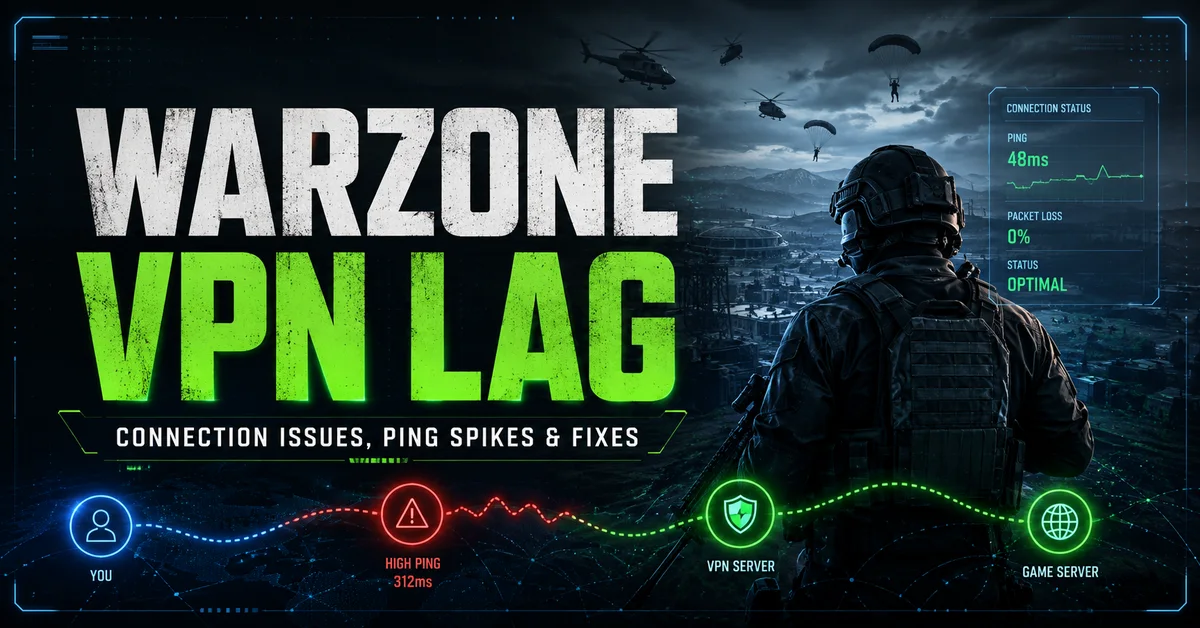
Warzone VPN lag is a common problem for Call of Duty players who are trying to improve matchmaking, test a new route or connect through a different region. A VPN can change the path your traffic takes, but that does not always mean a better experience. In many setups it adds distance, extra processing and more opportunities for congestion. The result can be higher ping, random lag spikes and gunfights that feel delayed even though the rest of your internet seems normal.
That is why it helps to think about Warzone VPN lag as a routing issue first. Your data no longer travels directly from your PC to the game server. It goes through a VPN server in the middle, and if that middle stop is overloaded, far away or poorly connected, the match can quickly feel worse. This is especially noticeable in Call of Duty, where fast reaction time matters and small latency swings can change how the game feels from one second to the next.
Why VPN routing can increase lag
Every extra hop can introduce delay. If you connect to a distant VPN node because you hope for easier matches, you may also be sending your traffic on a longer journey. A location that looks good on a map is not always good for gaming. Some endpoints are busy, some are poorly peered to Activision’s infrastructure and some are optimized more for web browsing than for low-latency play.
That does not mean every gaming VPN is bad. It means you need realistic expectations. If you still prefer route-based tools, use an established option such as a long-running Warzone geofence plus VPN service rather than a random unknown installer. Stable routing matters more than flashy marketing.
First fixes to try before changing everything
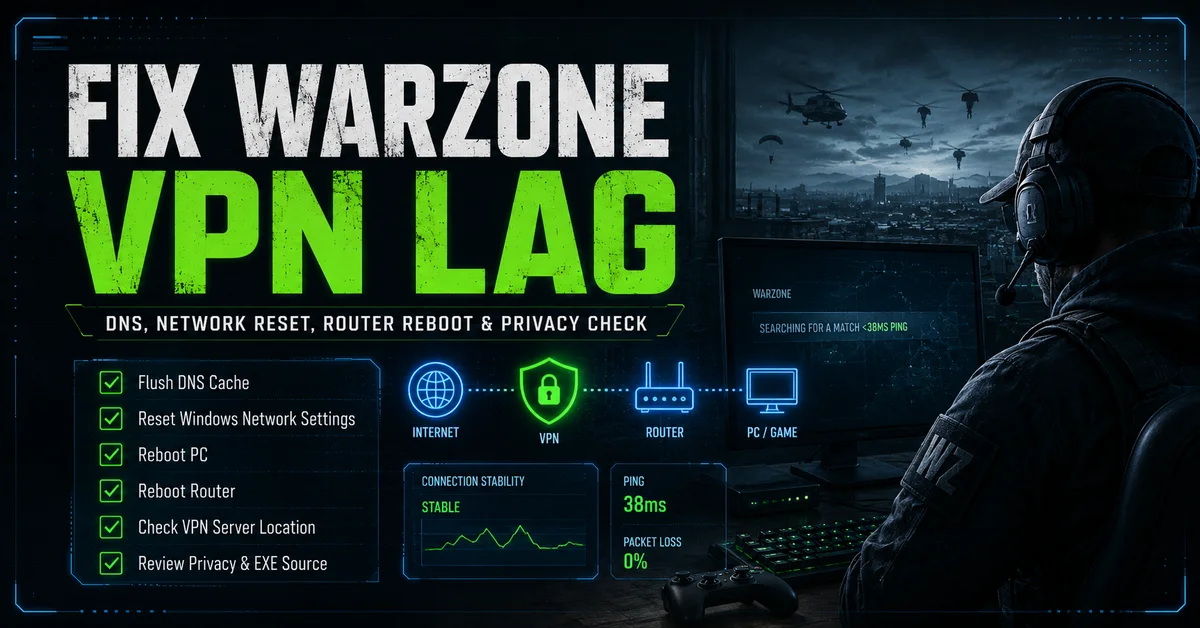
If your Warzone matches suddenly feel inconsistent, start with the basics. These simple steps often clear temporary networking problems:
- Flush your DNS cache: open Command Prompt as administrator and run
ipconfig /flushdns. - Reset Windows network settings: run
netsh winsock resetand thennetsh int ip resetin an elevated Command Prompt. - Reboot your PC: this can clear stuck VPN processes, adapter issues and temporary routing errors.
- Reboot your router: this refreshes your connection to your ISP and sometimes restores a cleaner route.
- Test another VPN location: one bad server can be the whole problem.
After doing that, compare the game with the VPN on and off. If your ping, hit detection and movement feel better without the VPN, you have a strong clue that the VPN path is hurting more than helping. A lot of players keep tweaking settings when the simplest answer is that a certain node is just poor for Warzone.
Privacy and trust also matter
Performance is not the only issue. VPN apps sit very close to your network activity, so players should think carefully about what they install. Some providers are reputable and transparent. Others are small, unfamiliar Windows executables asking for broad access without much background information. That does not prove anything malicious, but it should push you to check the privacy policy, look at the company’s reputation and understand what data may be logged.
For some players, the bigger lesson is that routing guesswork is not always the smartest way to chase easier lobbies. If your main goal is to understand how strong a lobby is, direct lobby visibility can be more useful than endlessly bouncing between VPN locations. Instead of hoping a route change gives you the result you want, it can be better to use a tool that helps you read the lobby itself. If you want to try that approach, you can register for LobbyKD here.
Better decisions lead to better matches
The best approach is to keep things practical. Start by flushing DNS, resetting Windows networking and rebooting both your PC and router. Test different VPN nodes only after you know your base connection is healthy. Choose providers carefully, especially when extra software is involved, and remember that consistency is often more valuable than a clever-looking server list. For Call of Duty and Warzone players, a clean connection and smarter lobby insight usually beat constant trial and error with unstable routes.
0 Comments
No approved comments yet.
Sign in to react or comment.
Login